PipeDeck

Everything PipeDeck does, screen by screen.

A tour of the screens a travel agency uses in PipeDeck, from the first WhatsApp enquiry to the booked trip. Select any screenshot to see it full size.

Leads

Every enquiry becomes a lead. The team works the inbox, and each lead keeps its conversation and details in one place.
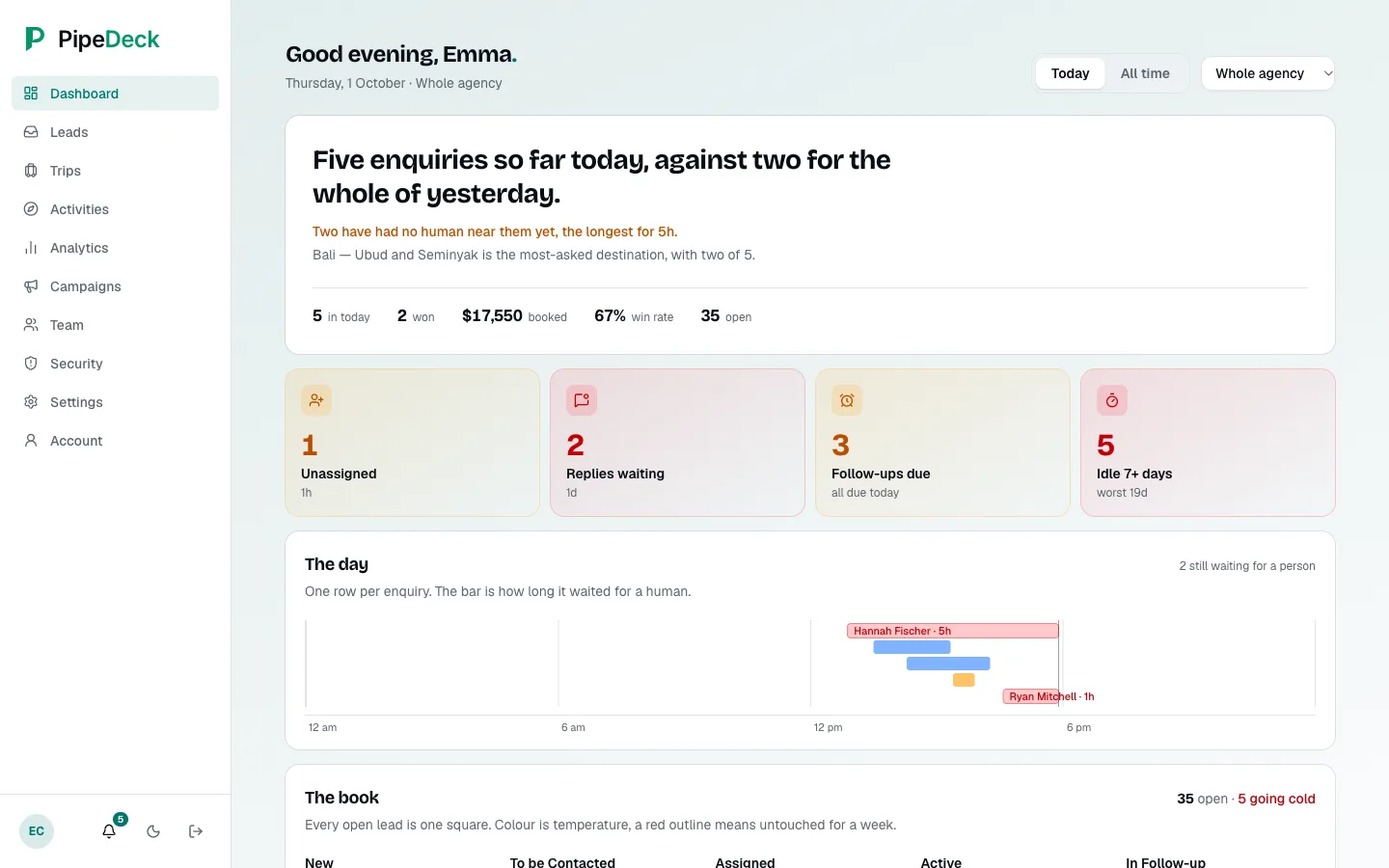
Dashboard with a greeting, a headline sentence, today's tiles (in today, won, booked, win rate, open), an attention band for unassigned leads, replies waiting, follow-ups due and leads idle 7+ days, a day ribbon of today's enquiries, and the top of the book of open leads.
Dashboard
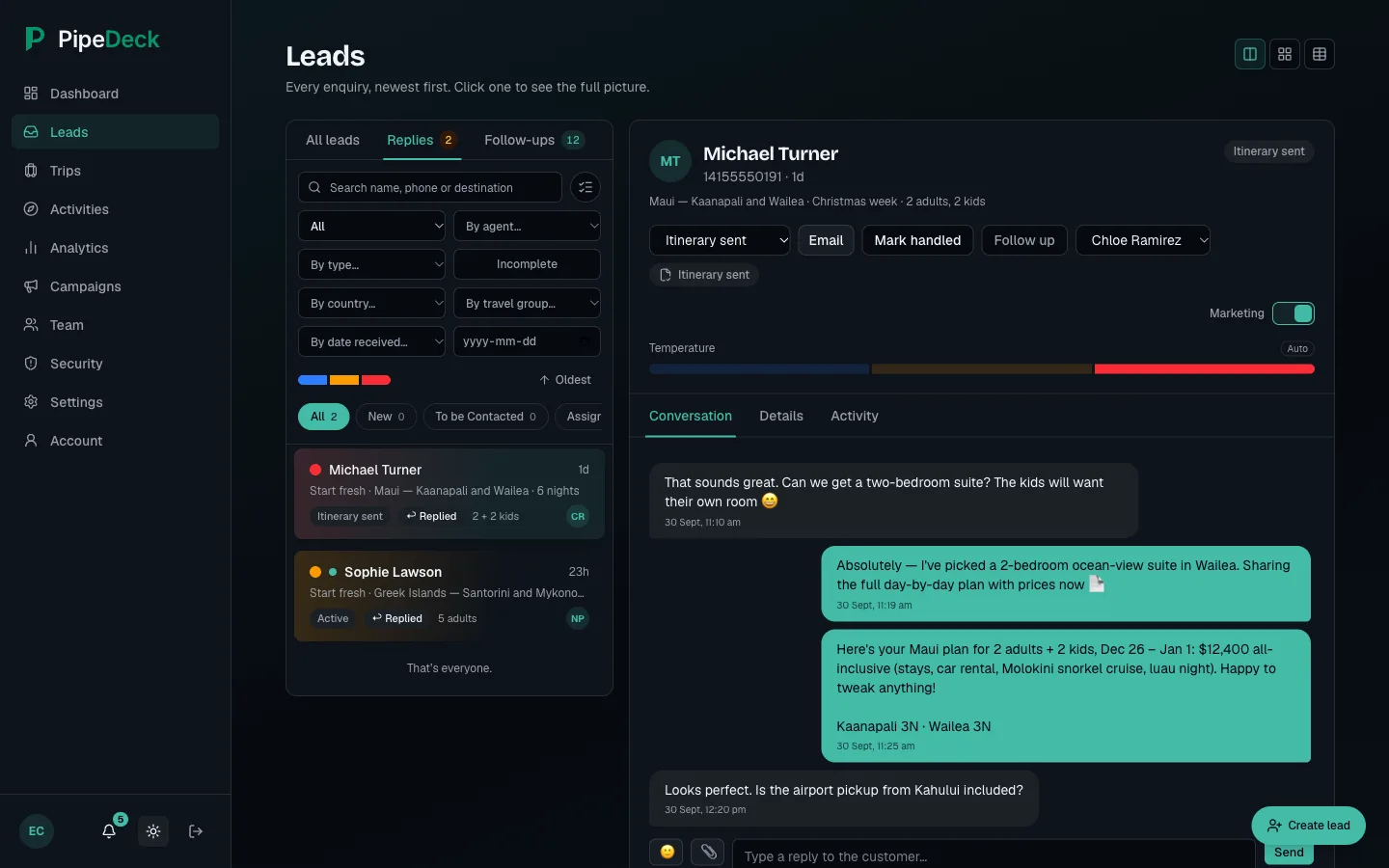
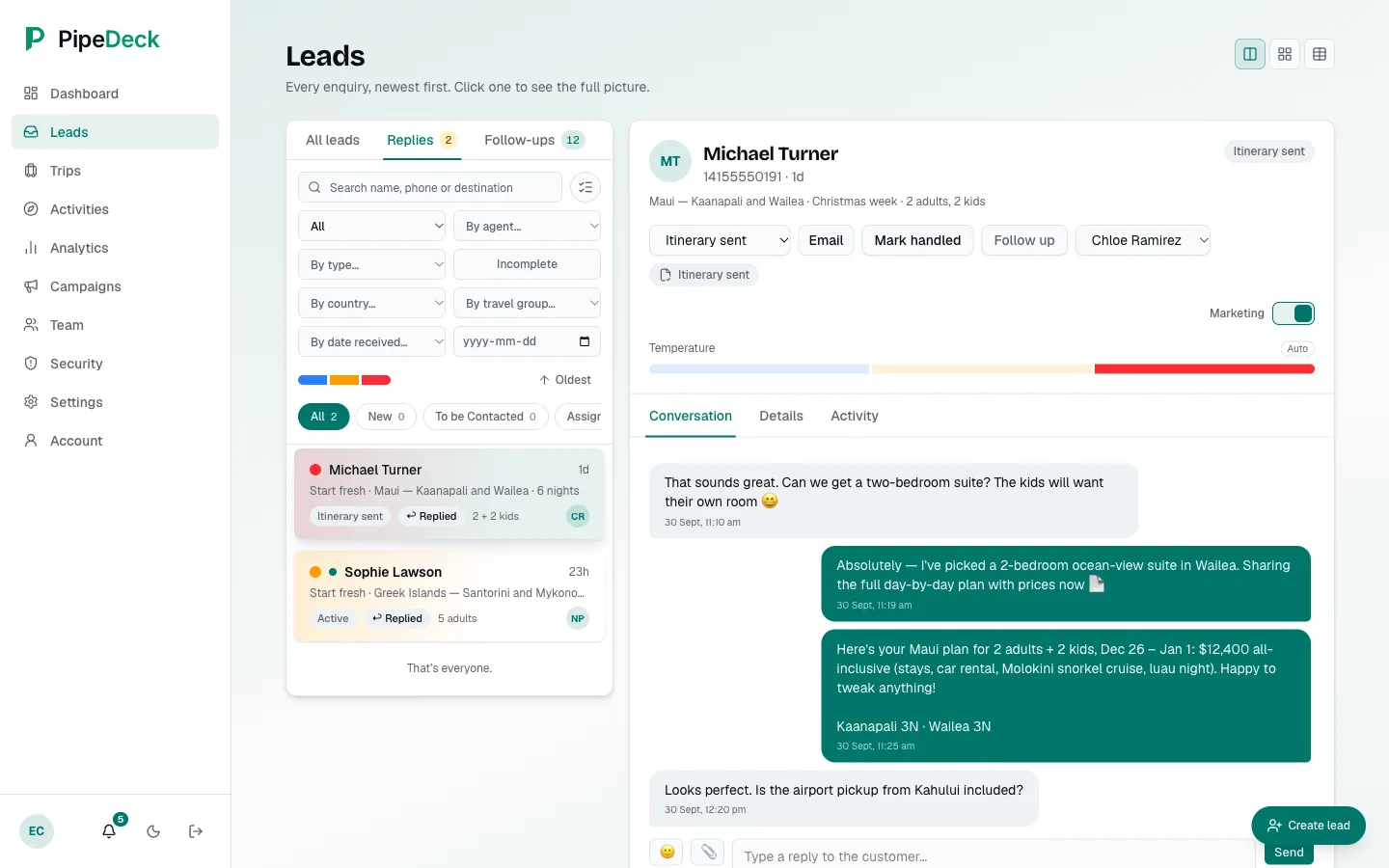
Replies tab with a badge, a list of leads showing status, party and agent initials, and the open lead's conversation with agent messages and a $12,400 plan, beside status, assignment, temperature and follow-up controls.
Replies inbox
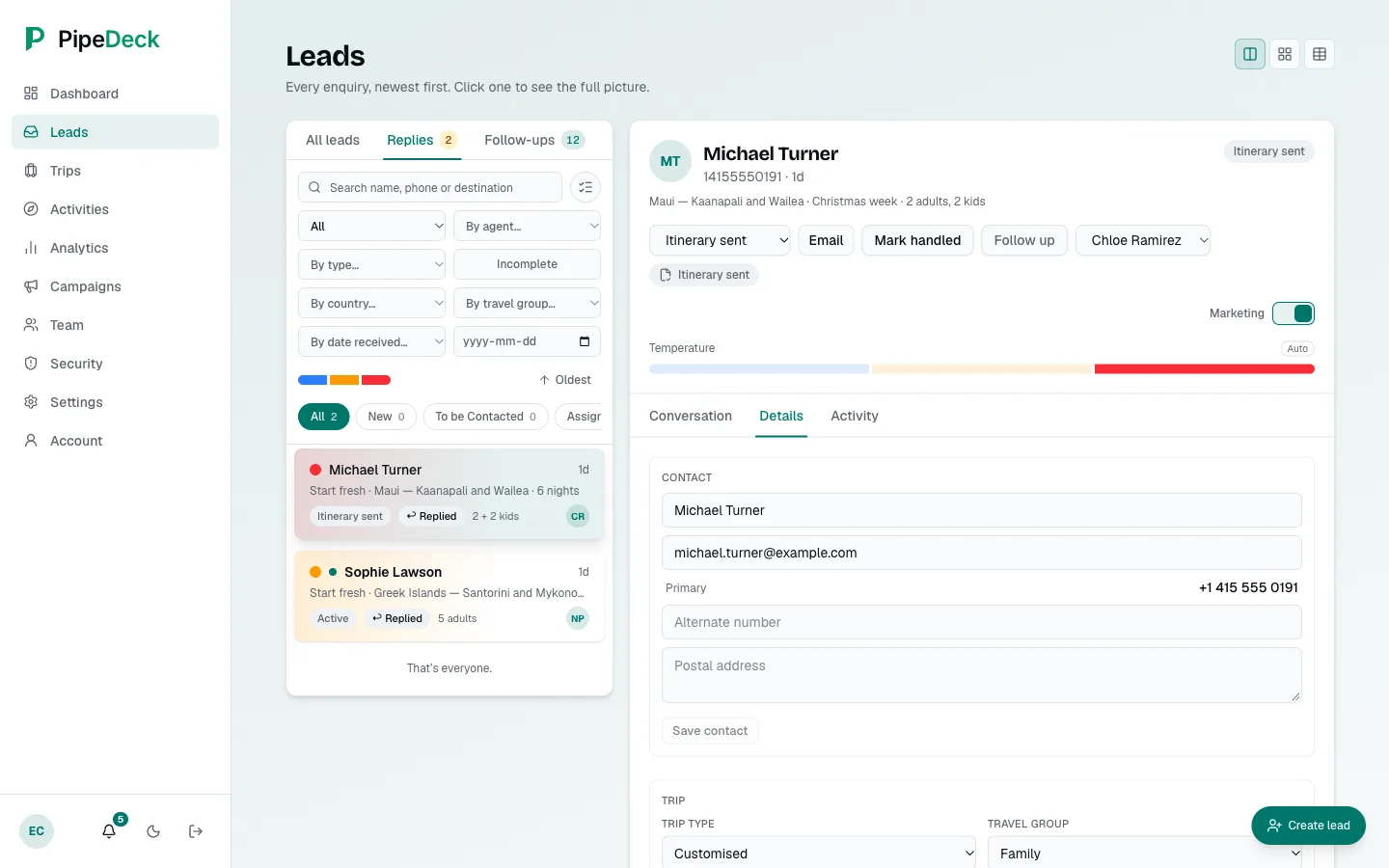
Details tab of a lead with the contact form (name, email, primary phone, alternate number, postal address) and the start of the trip section (trip type and travel group).
Lead details

Qualifying bot

A new WhatsApp enquiry gets a short set of questions. The answers appear in the lead's conversation, and the wording of the bot's messages can be edited.
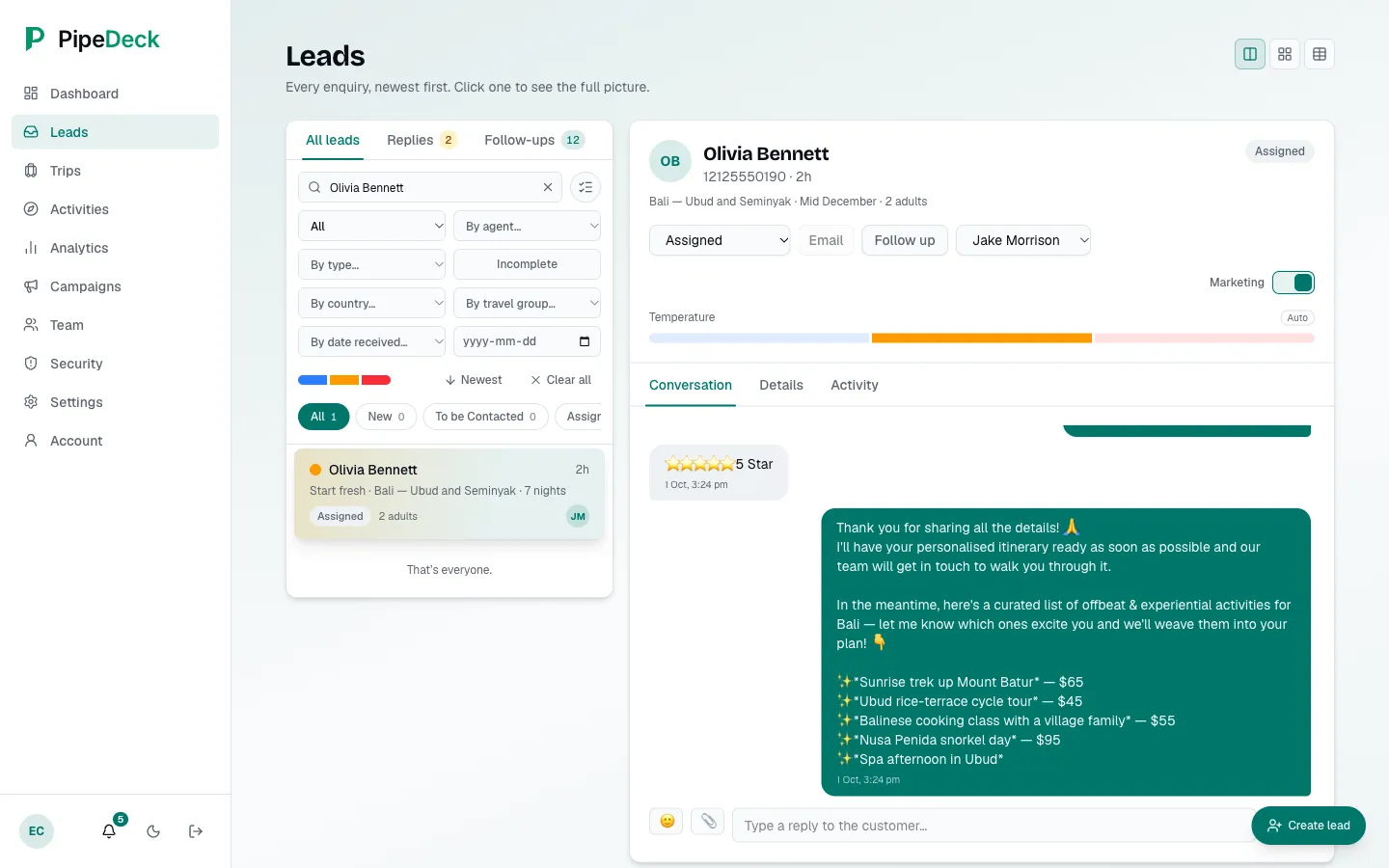
The end of a lead's bot conversation: the customer picks a 5-star hotel, and the bot's closing message lists Bali activities with prices in dollars.
Finished conversation
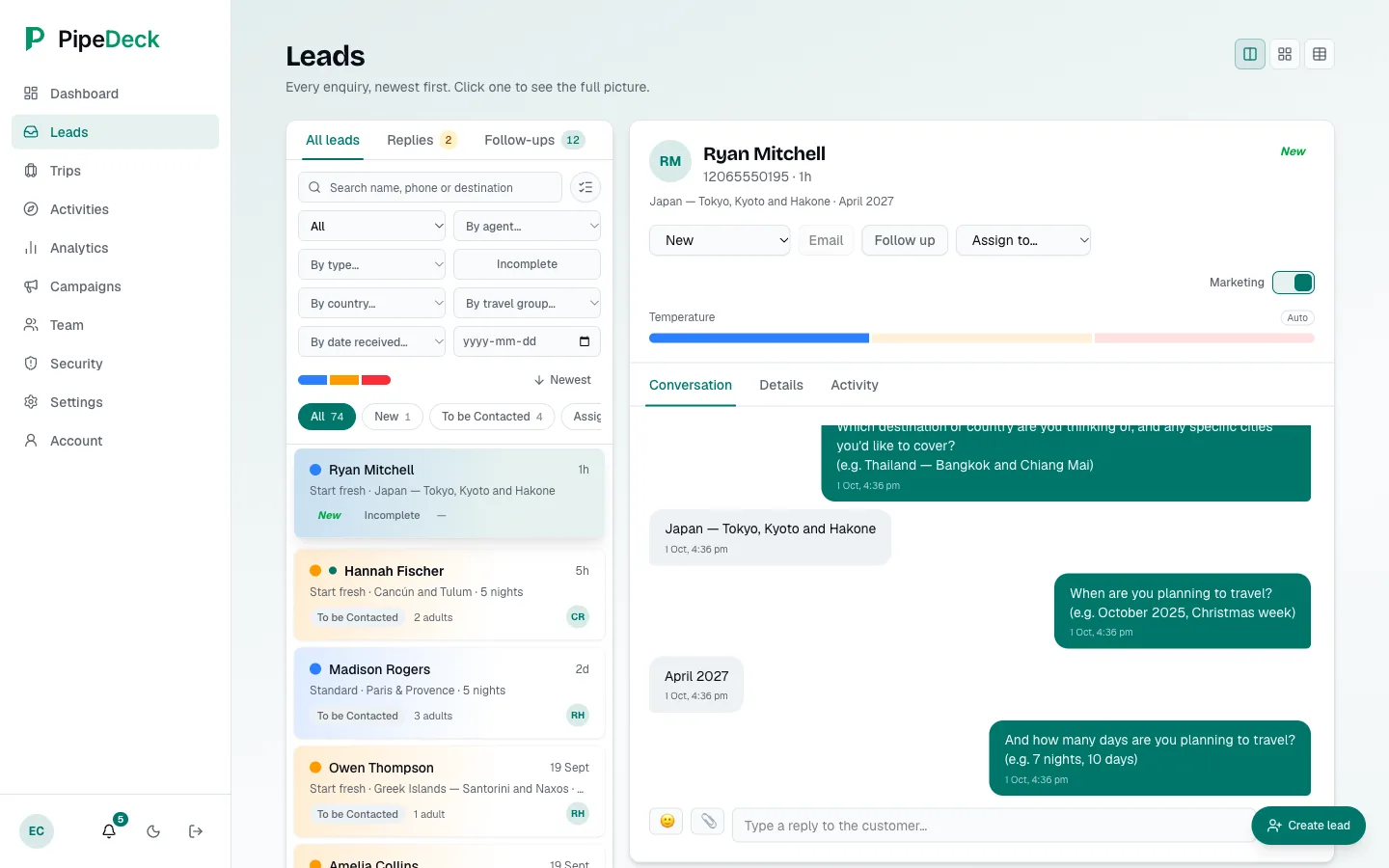
A lead list row marked New and Incomplete, with a conversation that stops at the question about how many days the customer plans to travel.
Conversation in progress
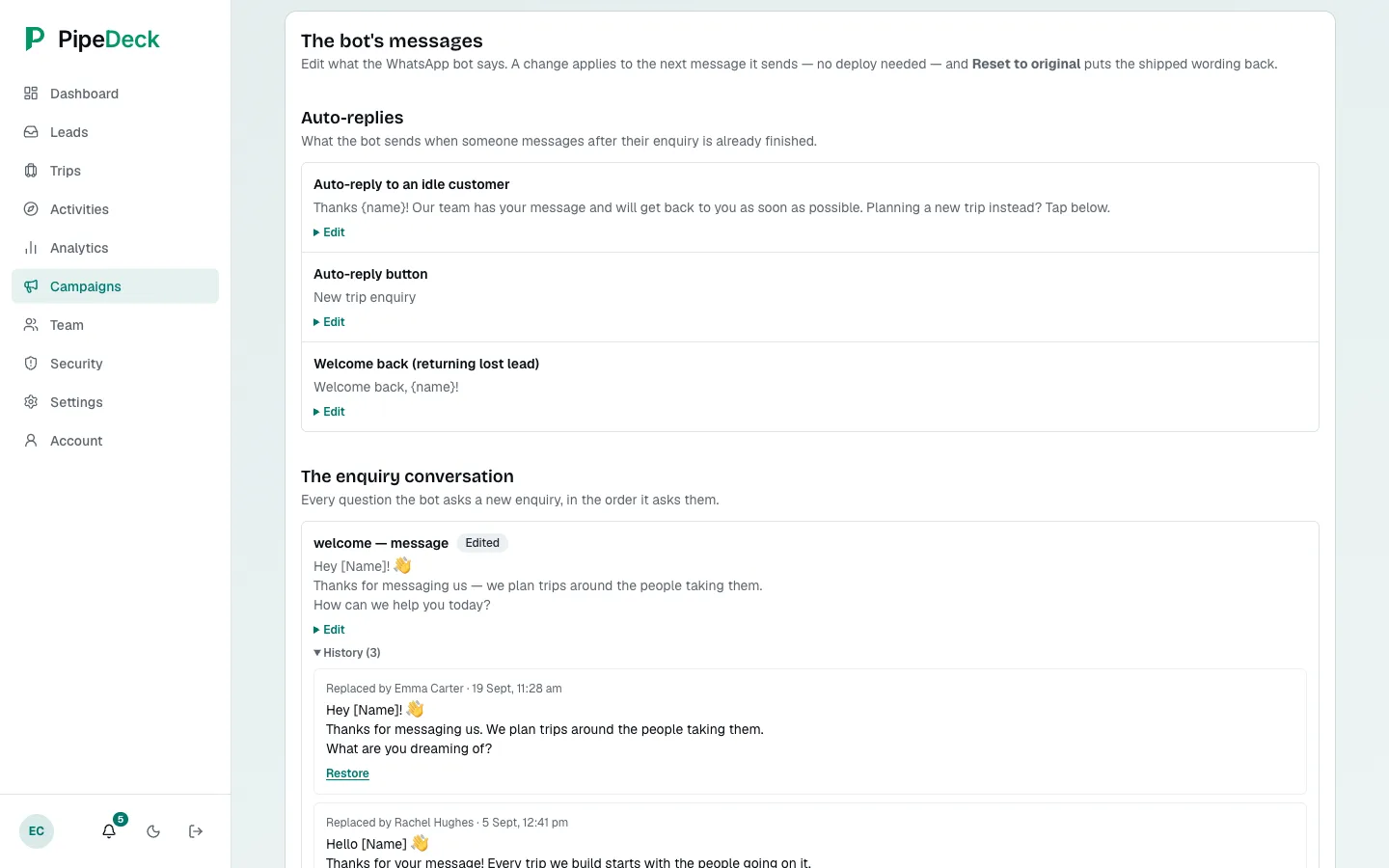
Messages screen with auto-replies and enquiry-conversation groups, a message marked Edited, and its History (3) open, showing earlier versions with who replaced them, when, and a Restore link.
The bot's messages and their history

Campaigns

Campaigns go out as approved WhatsApp templates. A manager approves each run before anything is sent.
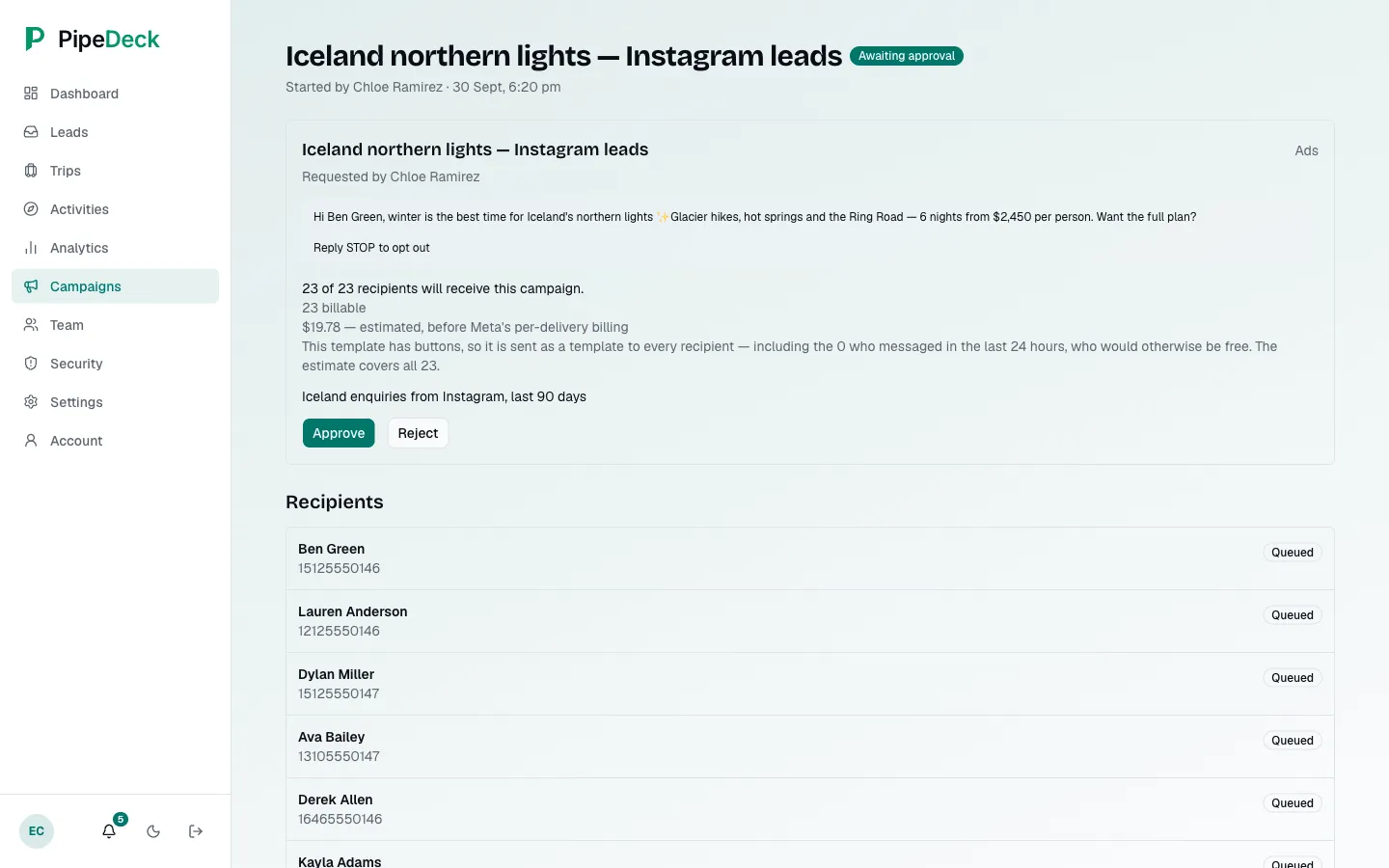
A campaign run awaiting approval, with a template preview showing the customer's name, the recipient count, an estimated cost in dollars, an audience note, Approve and Reject buttons and a recipient list marked Queued.
A run awaiting approval
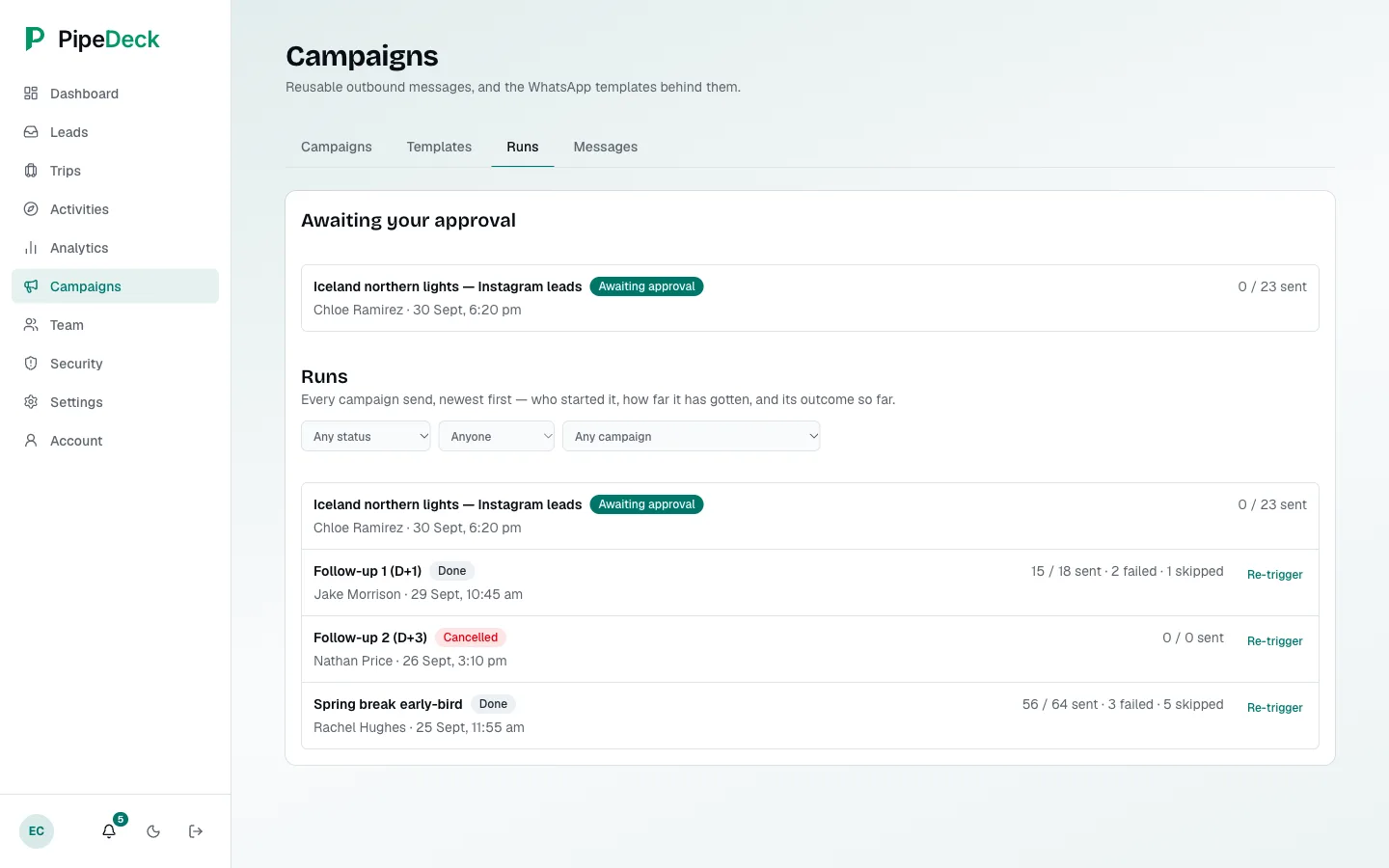
Campaign runs list with an Awaiting your approval block and runs showing sent, failed and skipped counts, with filters and a Re-trigger option.
Campaign runs

Follow-ups

Each lead's next follow-up is scheduled on a ladder of steps, and the Follow-ups tab shows who is due. A group of leads can be sent a follow-up campaign in one go.
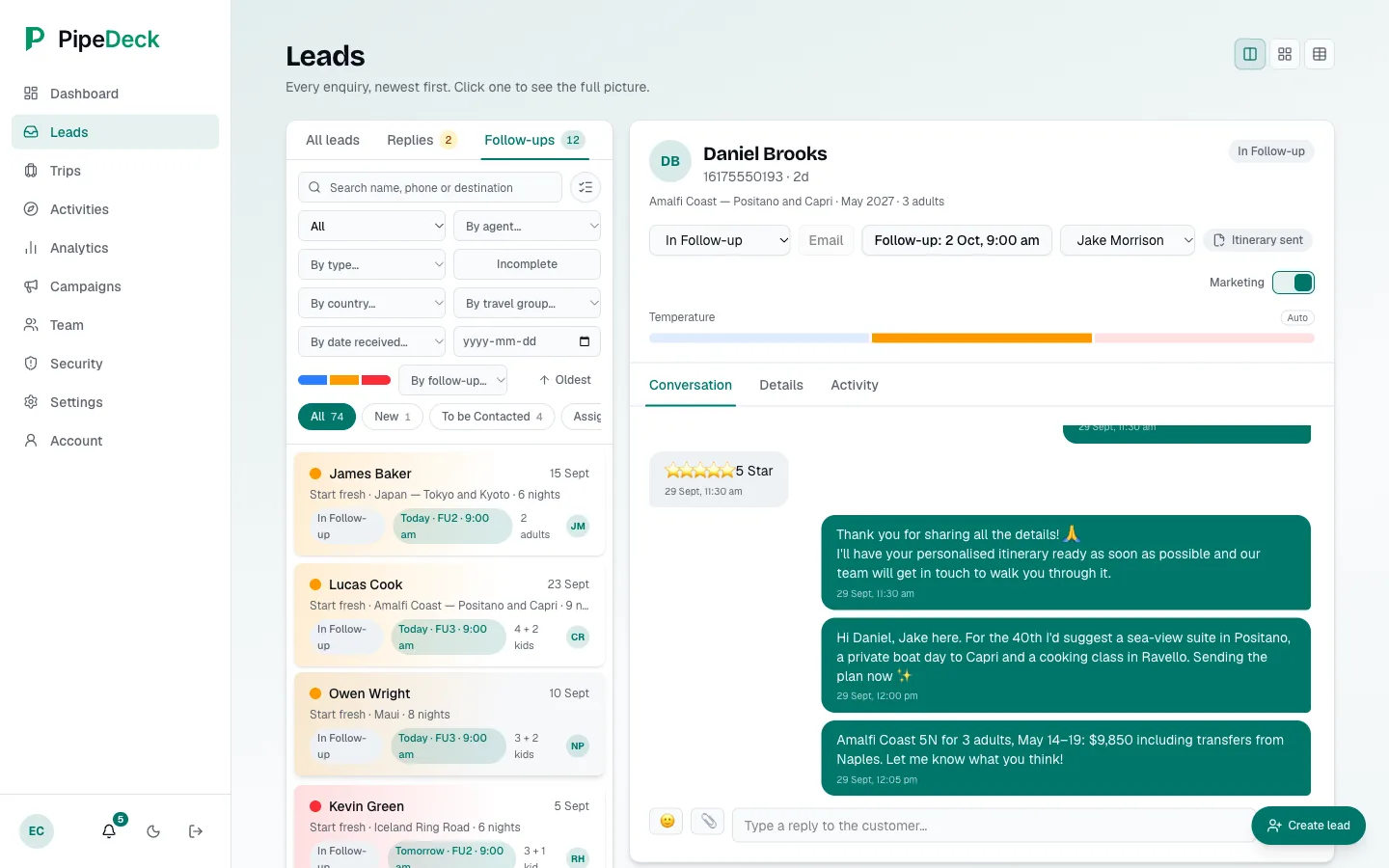
Follow-ups tab with a count, rows showing the due day, follow-up step and time, a follow-up filter, and the open lead's conversation with a plan.
Follow-ups due
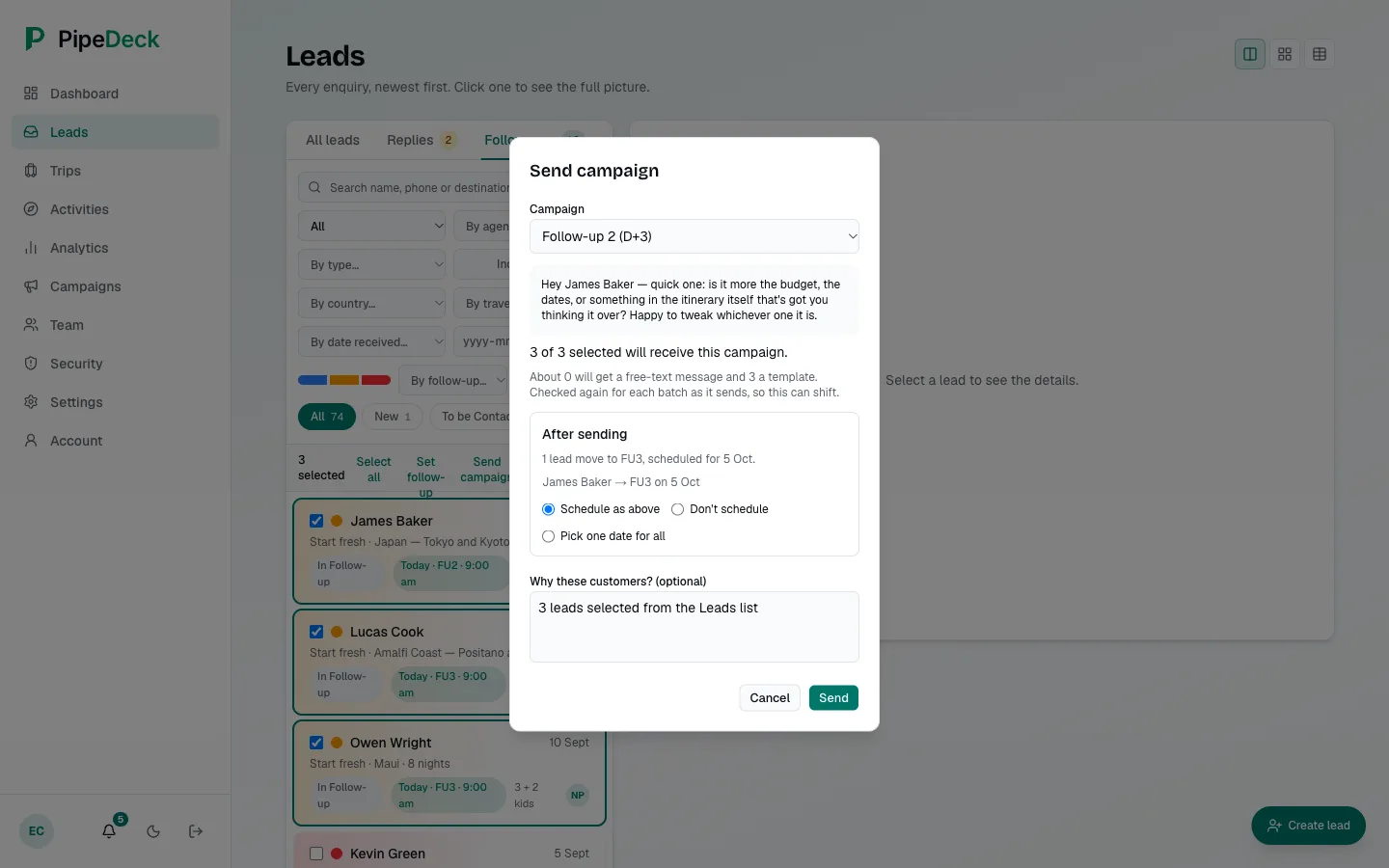
Follow-ups tab with three leads selected, a selection bar with the count, and the Send campaign sheet open with a follow-up campaign chosen, a message preview, the recipient count and options for scheduling the next follow-up.
Sending a follow-up to several leads

Trips & pricing

Once a lead is won, the trip has its own record. Activities and their prices are kept in a catalogue for each destination.
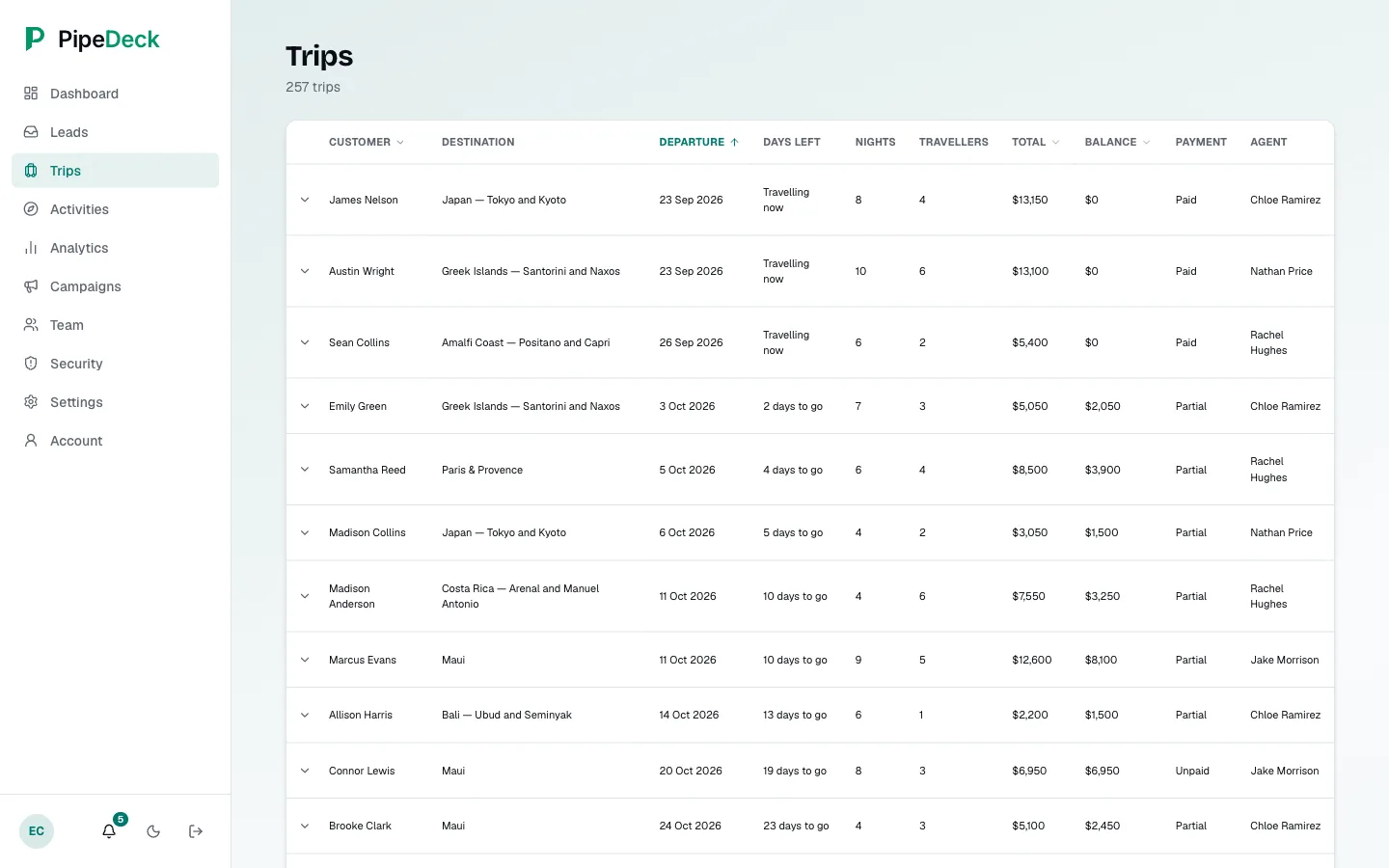
Trips table with customer, destination, departure, days left or Travelling now, nights, travellers, total, balance, payment status (Paid, Partial or Unpaid) and agent.
Trips
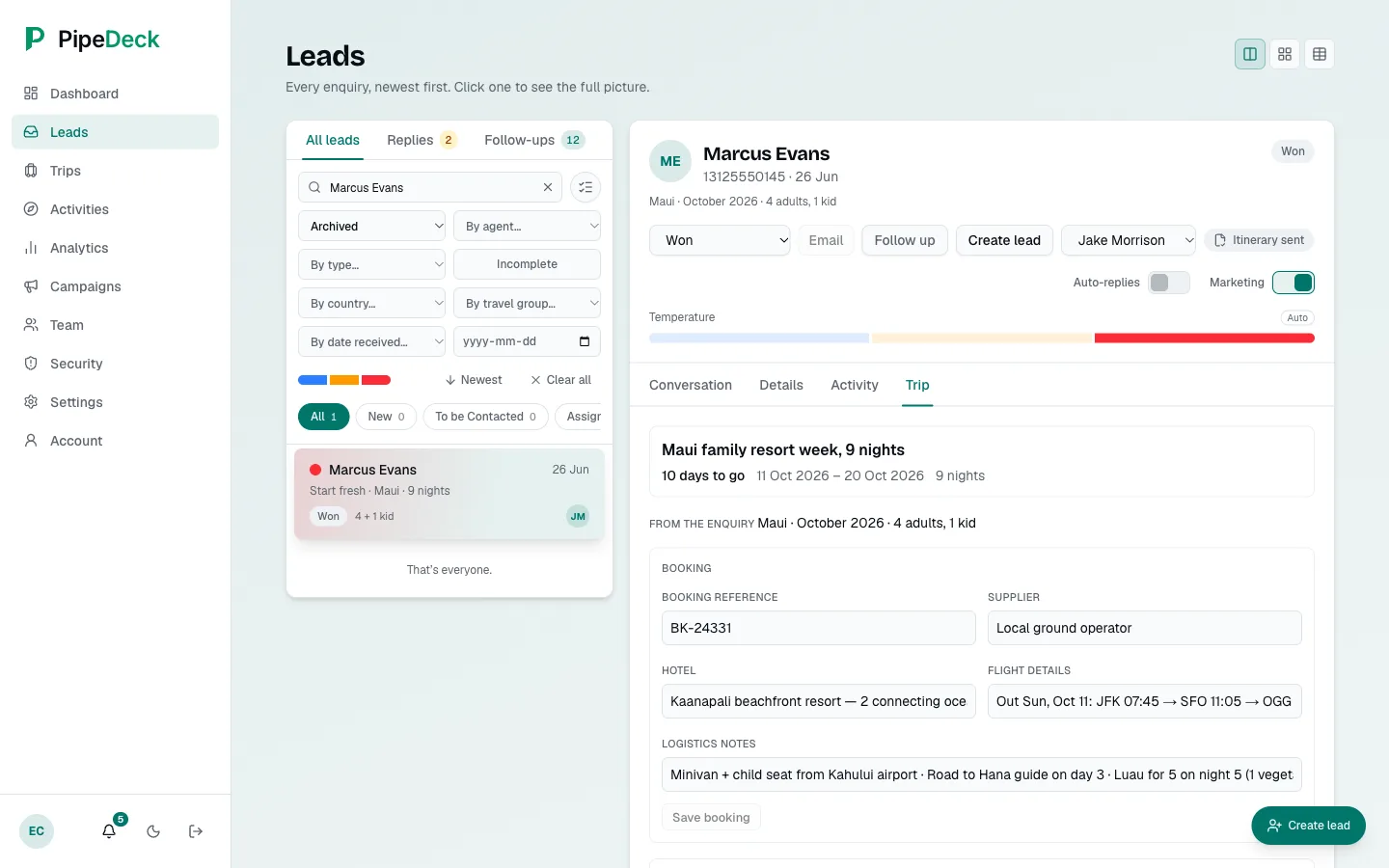
Trip tab of a won lead showing the package, dates and days to go, and the booking details: booking reference, supplier, hotel, flight details and logistics notes.
A booked trip
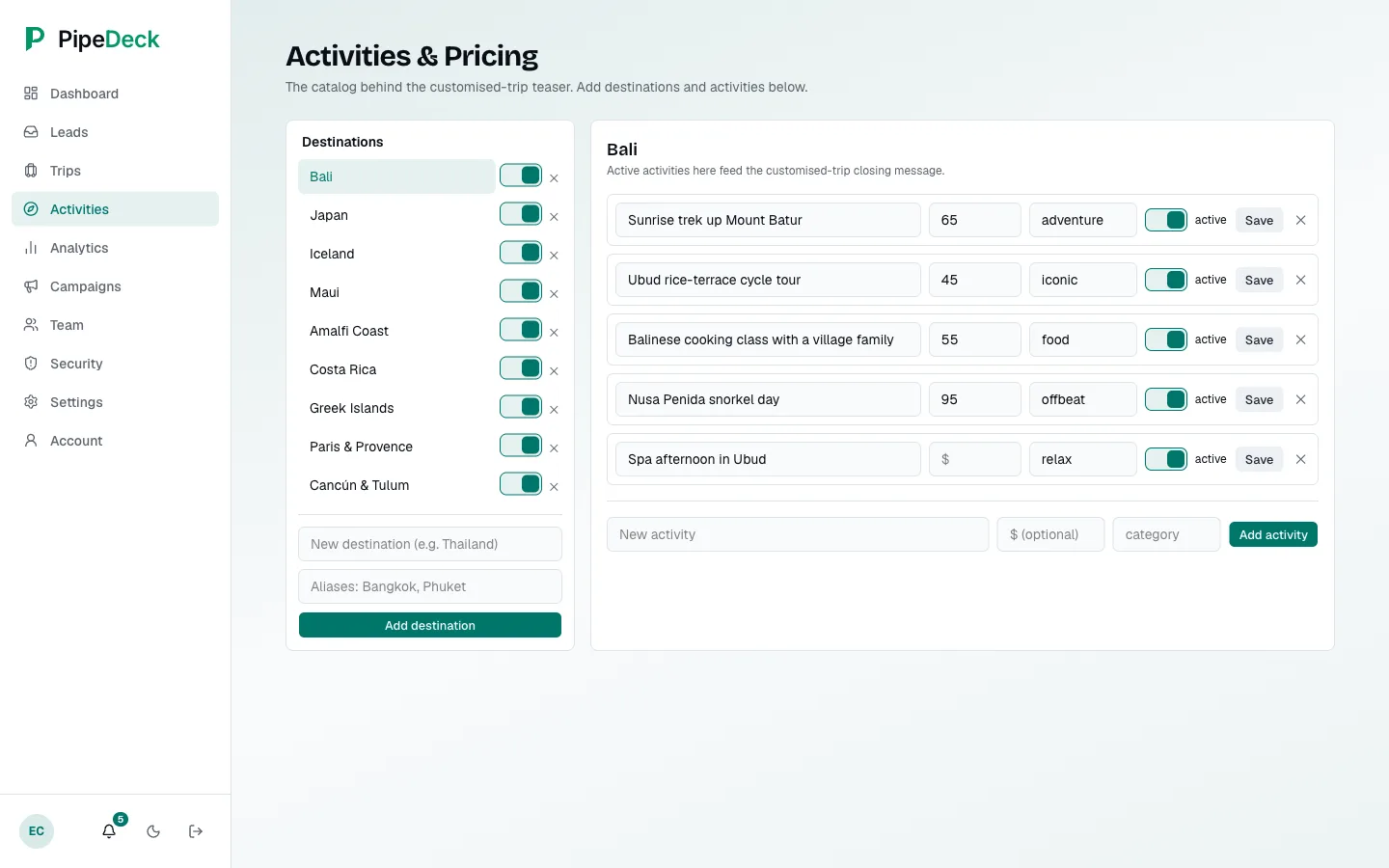
Activities screen with a list of destinations and, for the selected one, activities with a price, a category and an active toggle.
Activities catalogue

Analytics

Four of its nine views show how the business is doing: overview, a live board of open leads, reply speed and revenue.
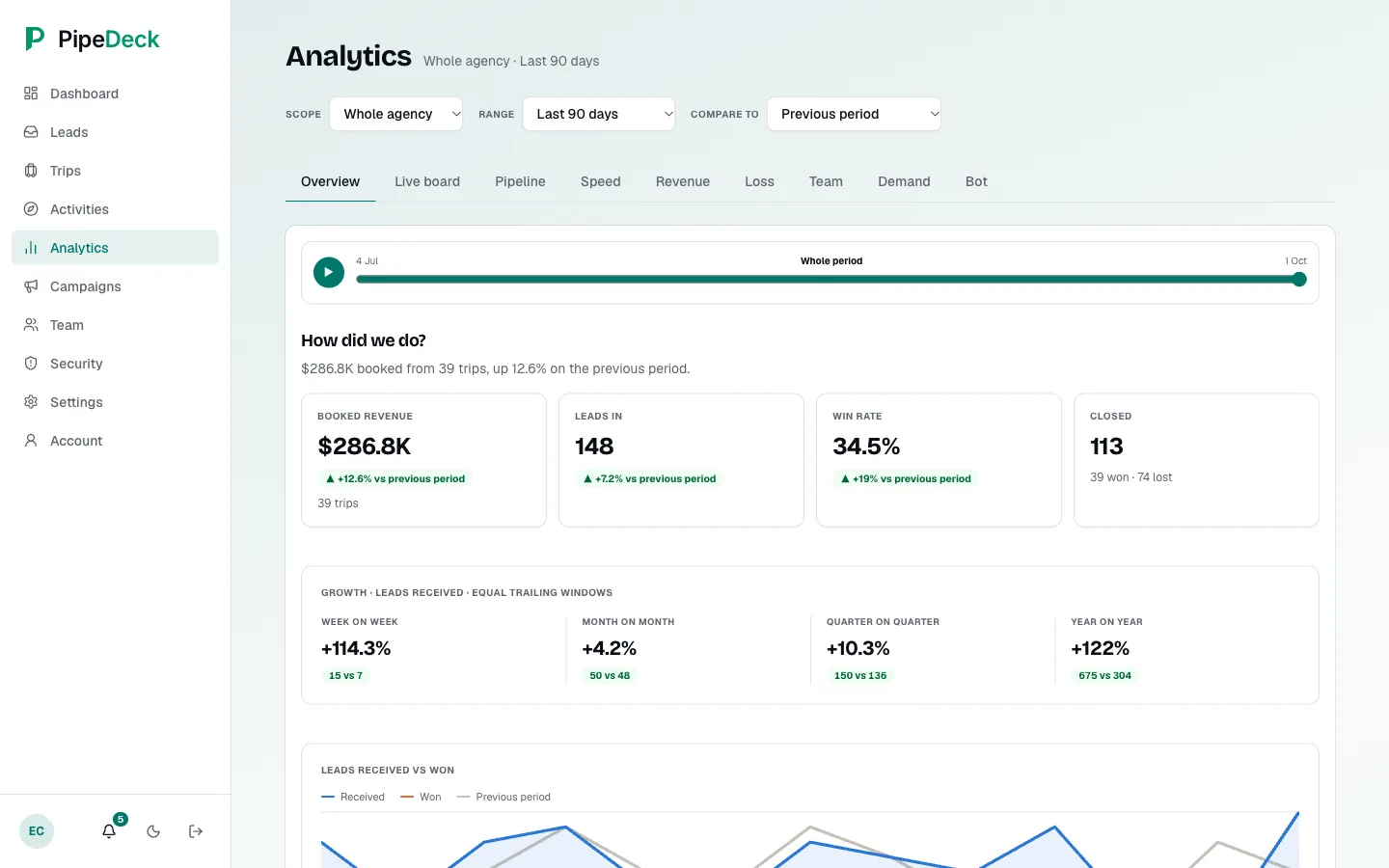
Overview with a headline sentence, booked revenue, leads in and win rate compared with the previous period, closed leads split into won and lost, a growth strip and a received-versus-won chart.
Overview
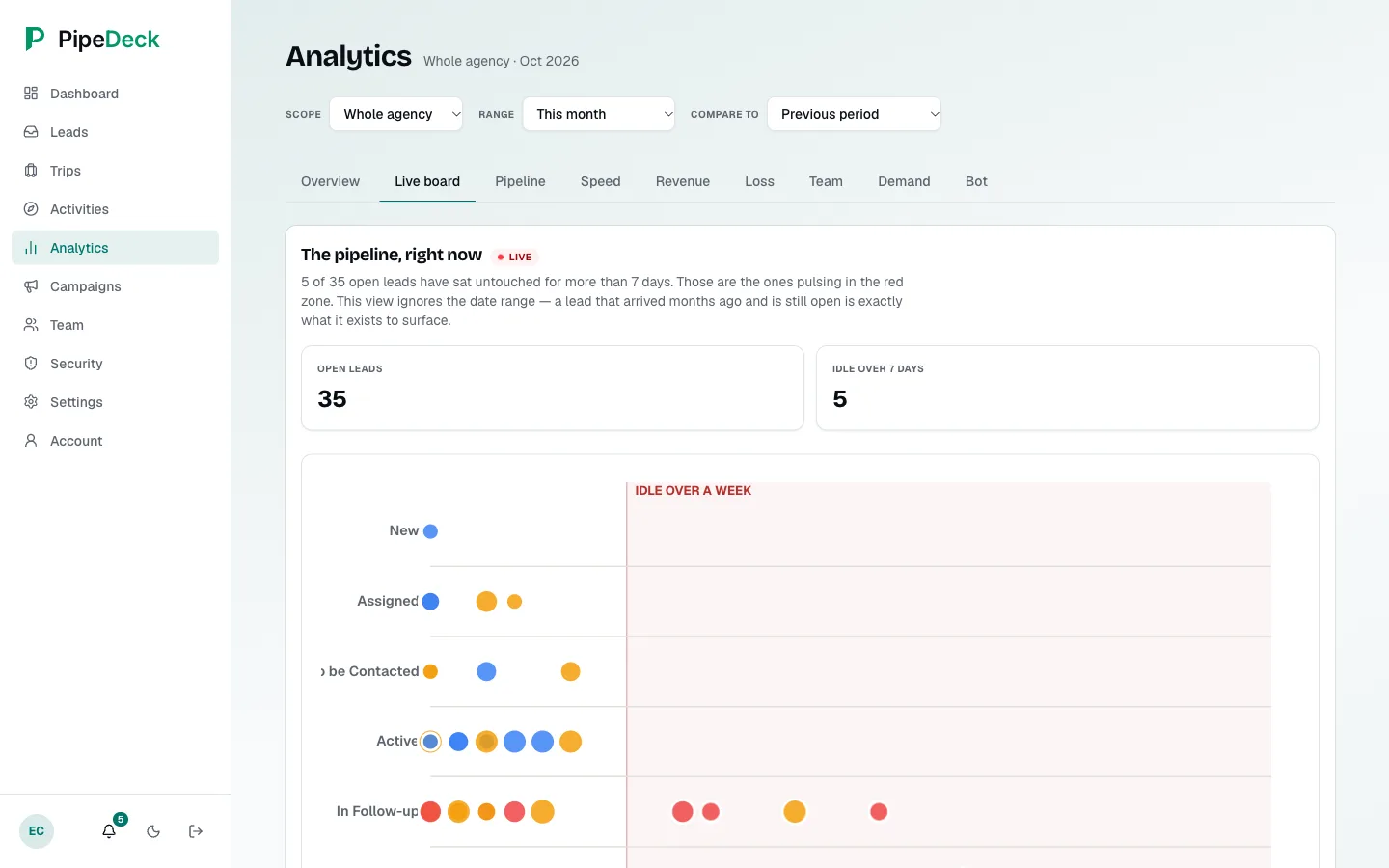
Live board of open leads shown as dots by stage and days idle, with idle leads in the red zone.
Live board
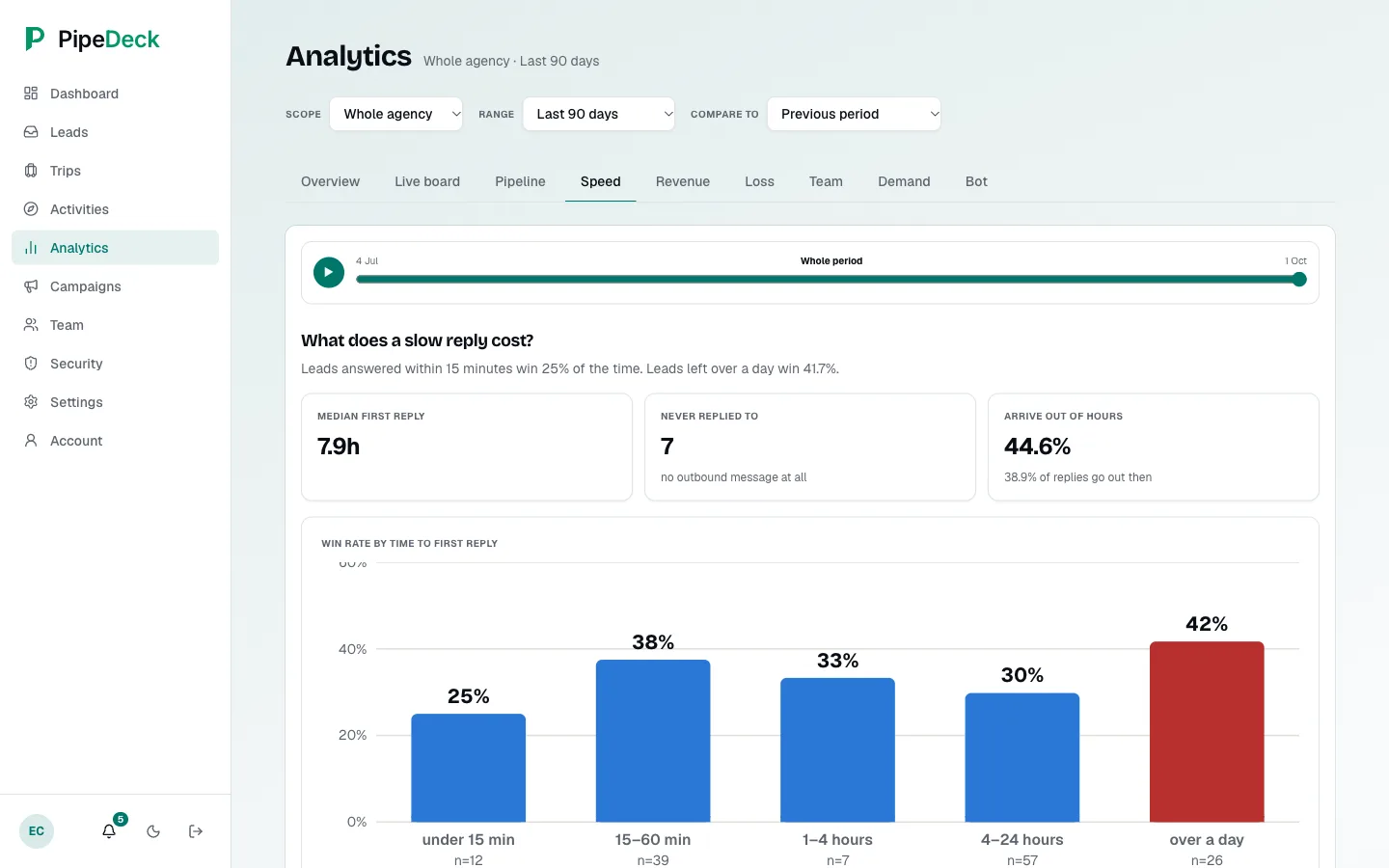
Speed view with median first reply, leads never replied to, the share arriving out of hours, and win rate by time to first reply.
Reply speed
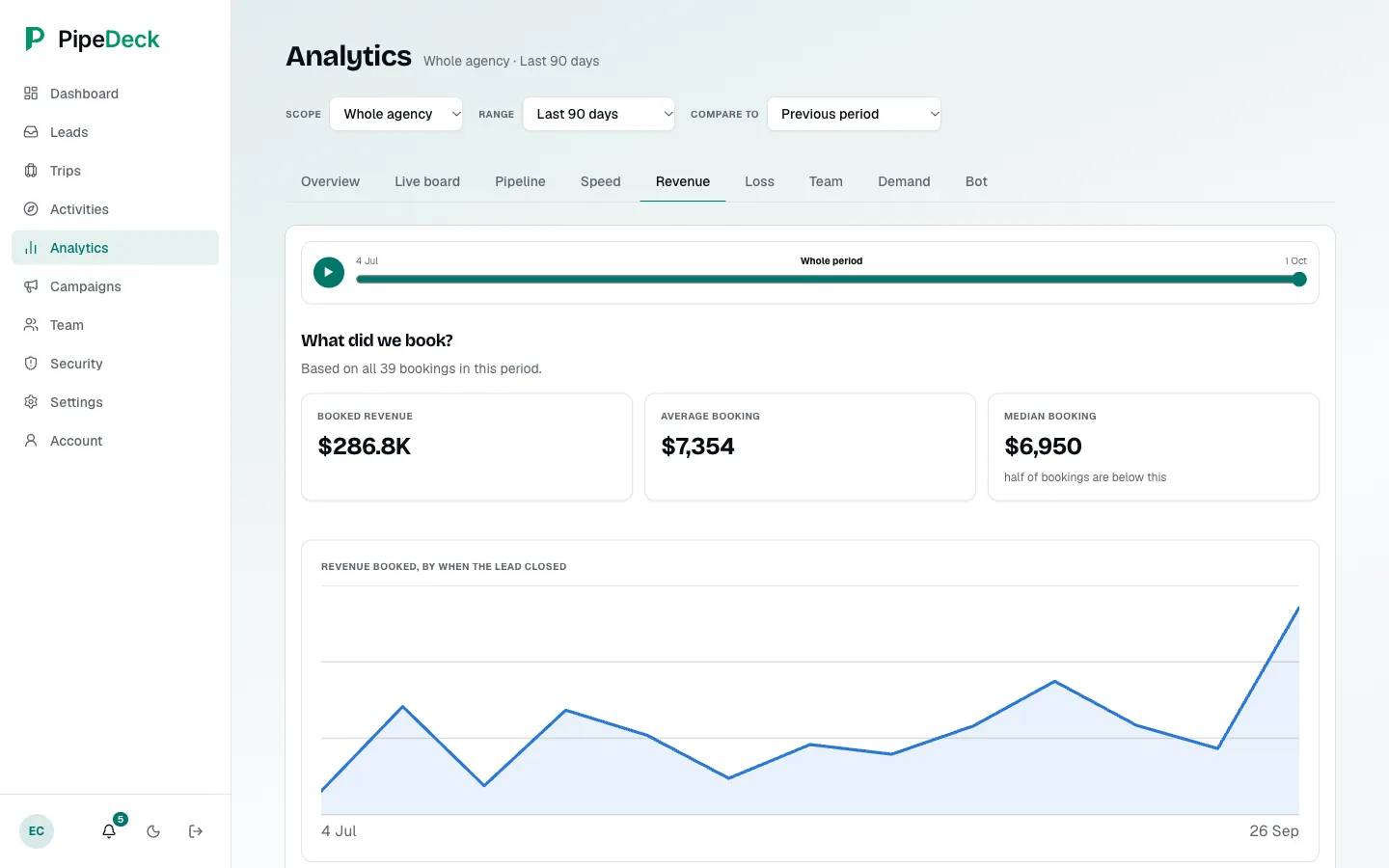
Revenue view with booked revenue, average and median booking, and a chart of revenue booked over time.
Revenue

Team & hierarchy

Give each person a role and a designation, and set who reports to whom.
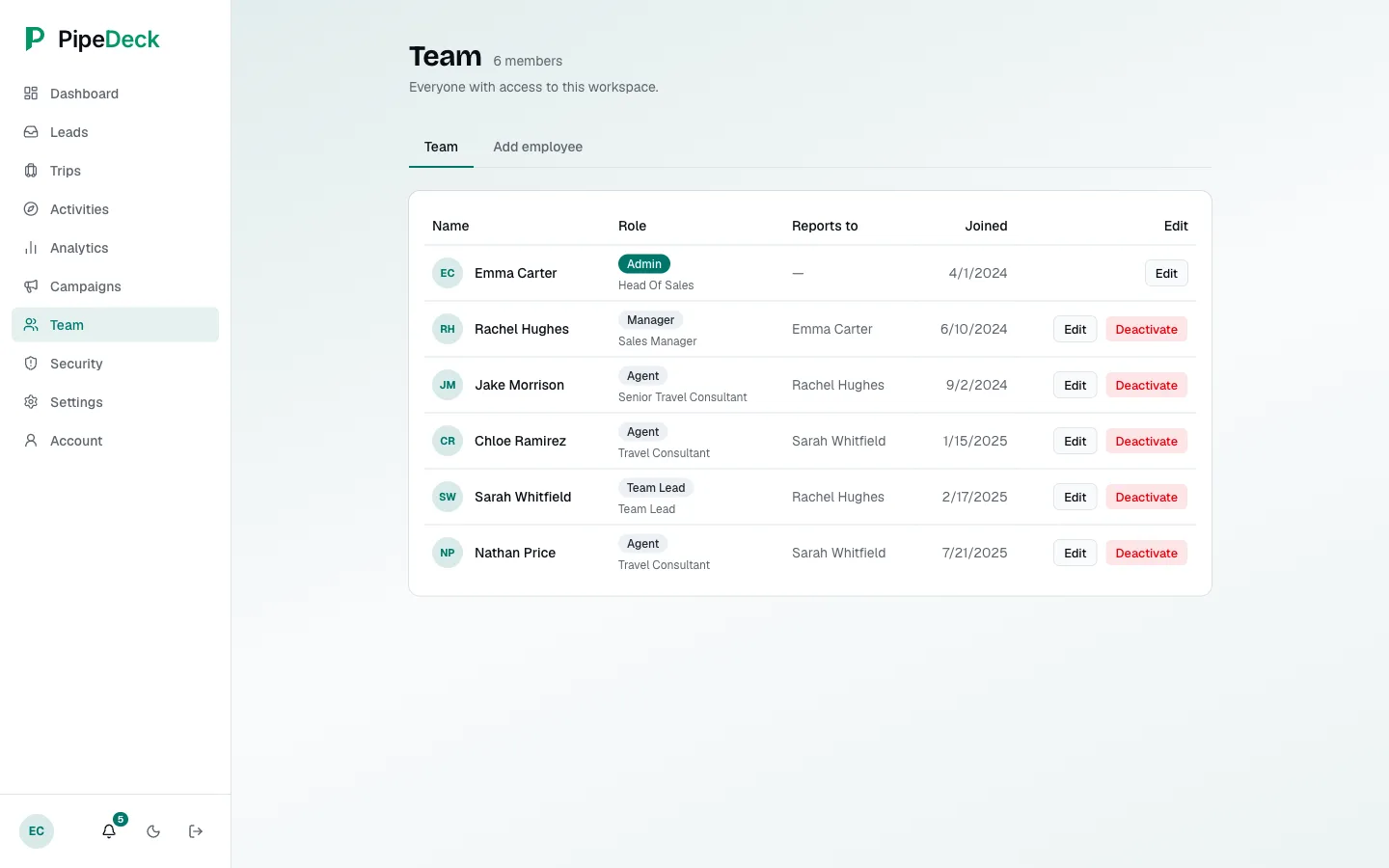
Team screen listing members with avatar, role, designation, who they report to, joined date, and Edit and Deactivate buttons.
Team members
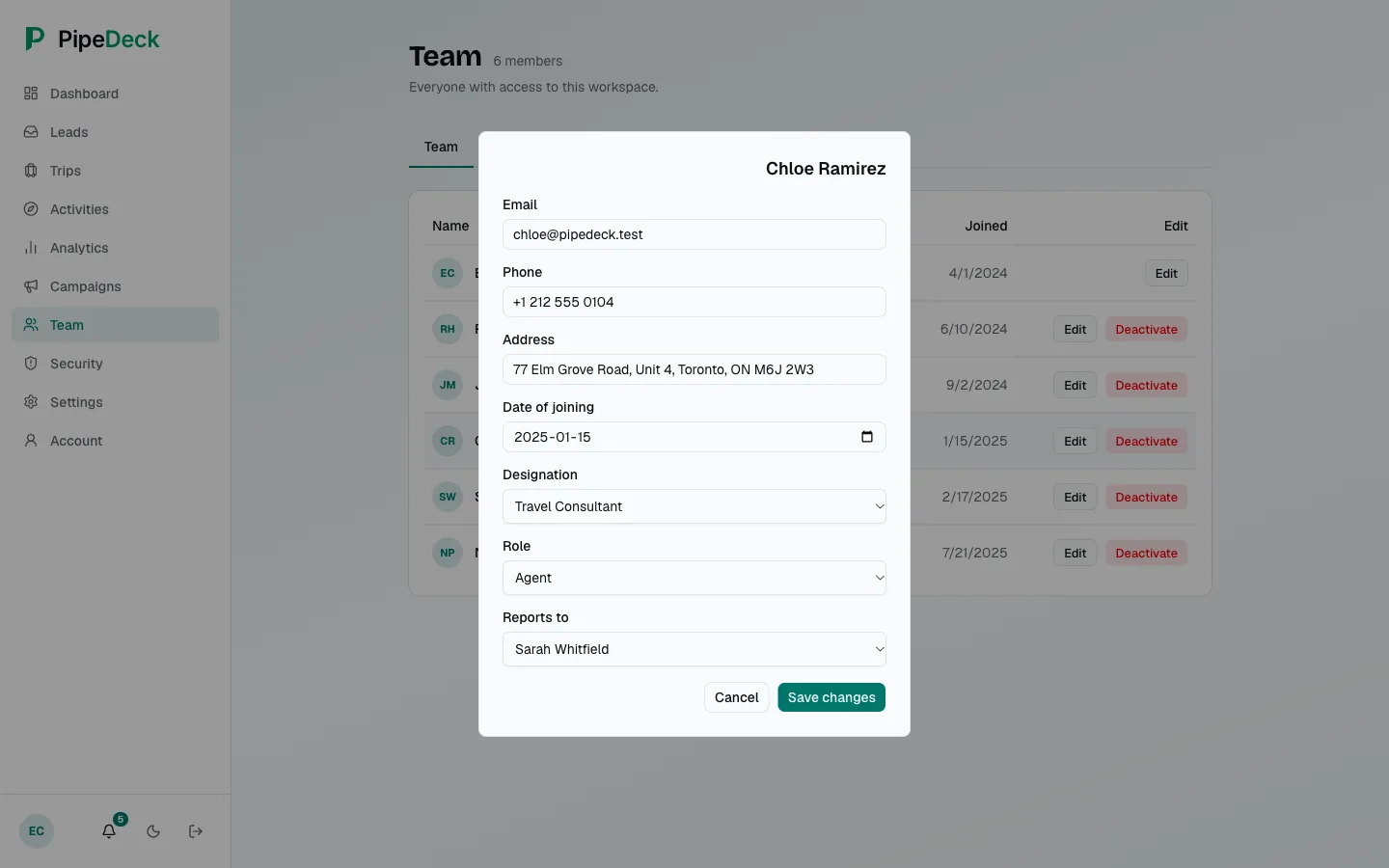
A team member's edit panel with email, phone, address, joined date, designation, role and reports-to fields.
Editing a member

Security

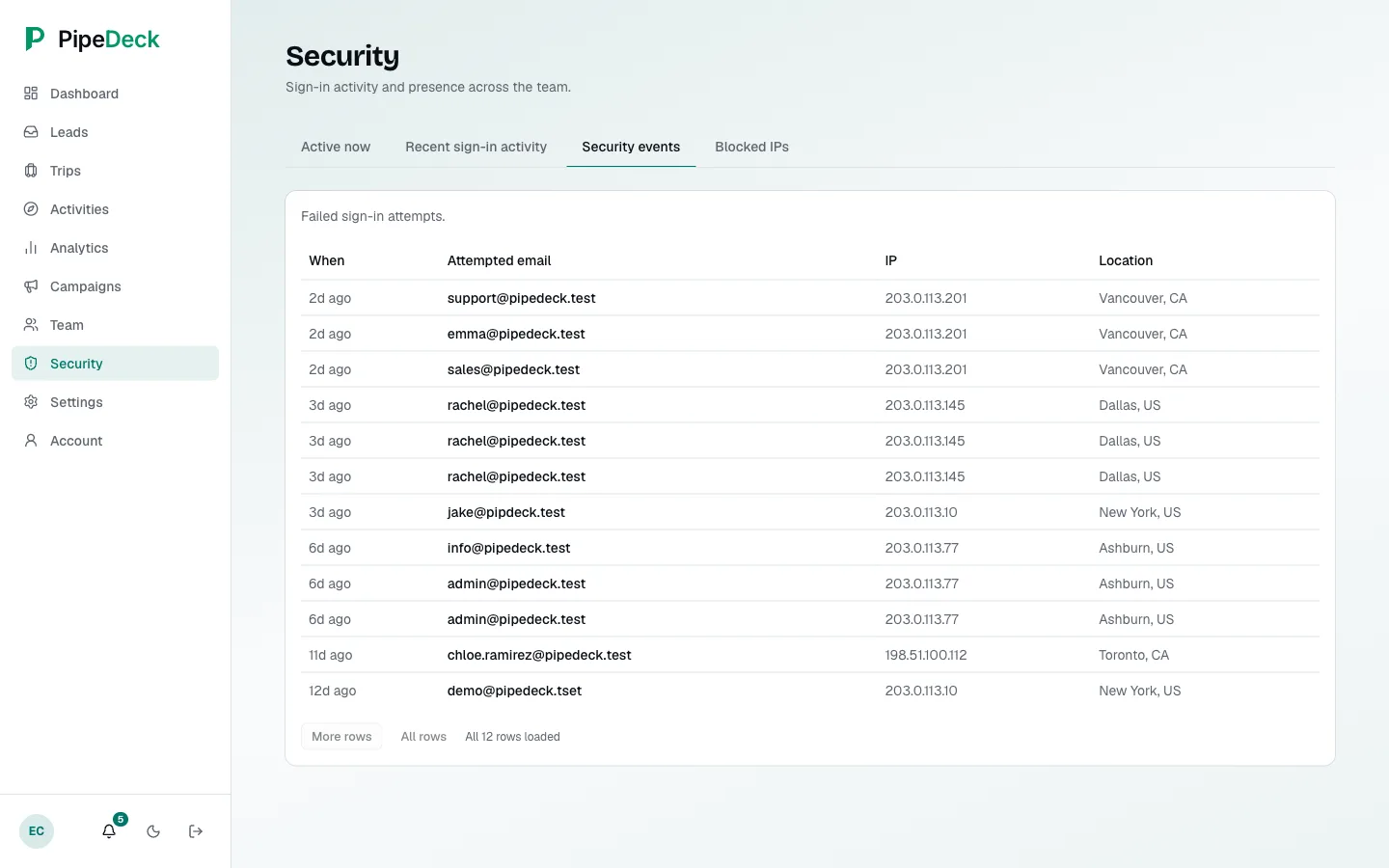
Admins can see who signed in and from where, review failed sign-in attempts, and manage blocked IP addresses.
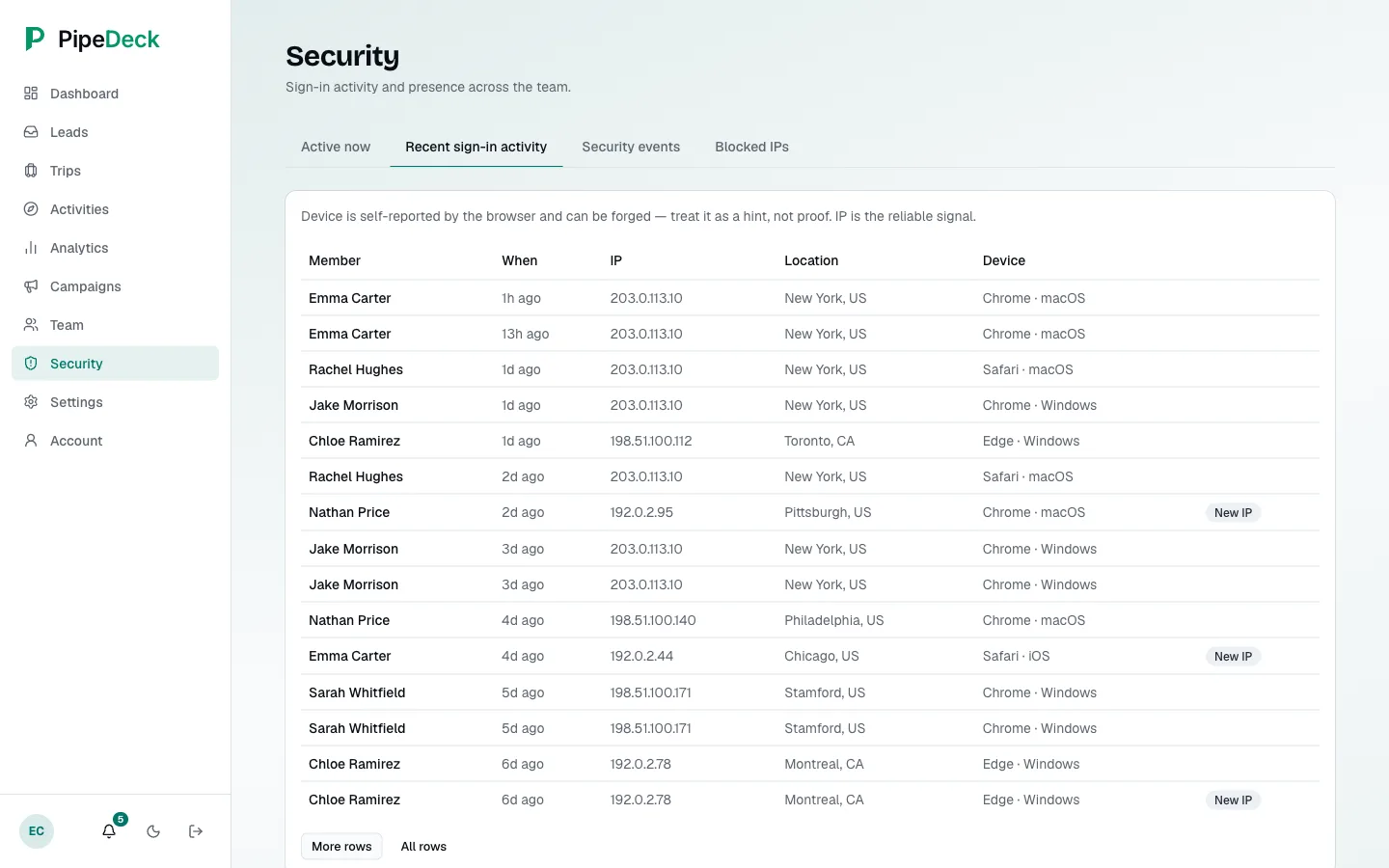
Recent sign-in activity listing the member, time, IP address, city and country, device, and New IP flags, with paging.
Recent sign-in activity
Security events listing failed sign-ins with time, attempted email, IP address and location.
Security events
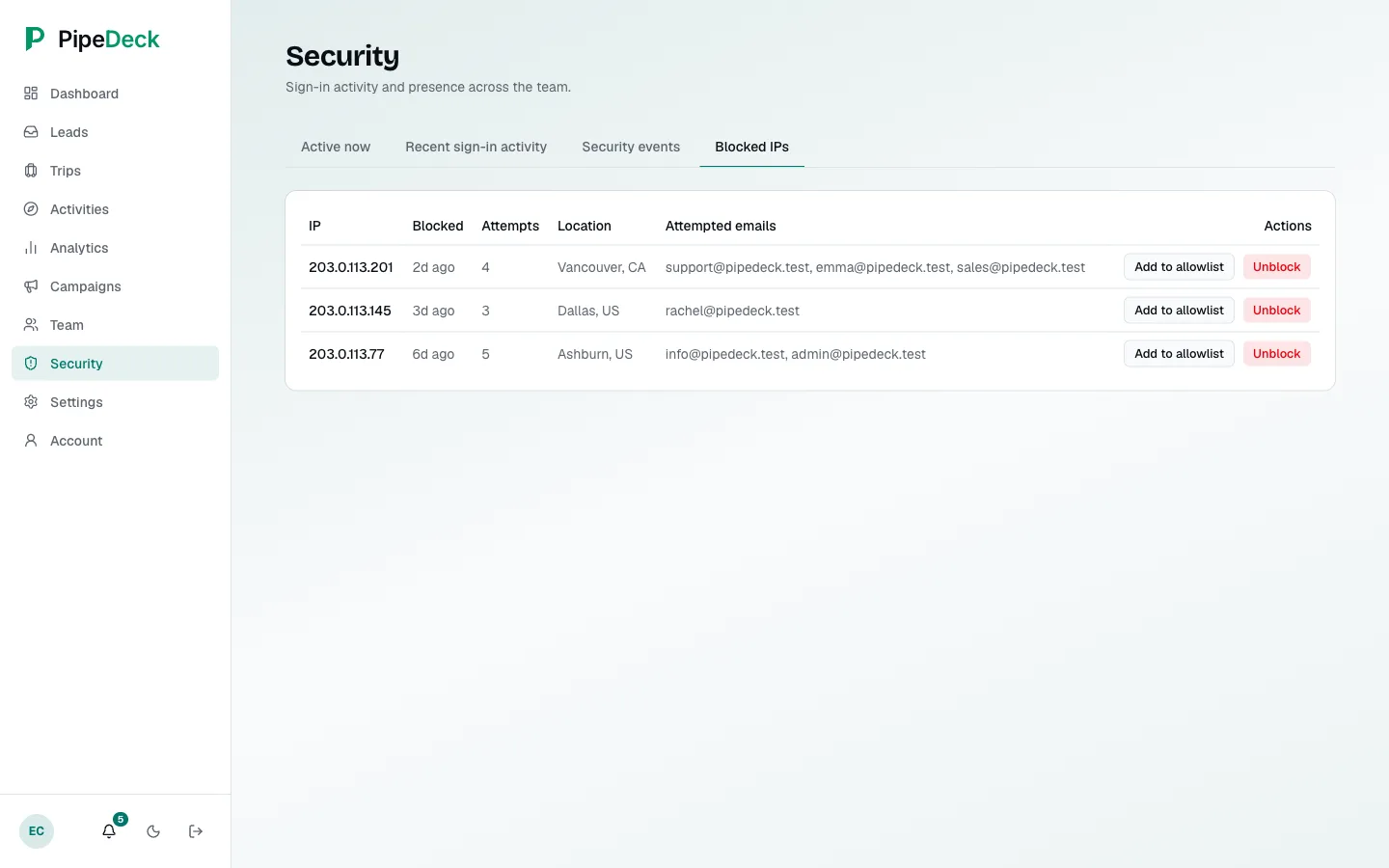
Blocked IPs list with IP address, when it was blocked, attempts, location, attempted emails, and Unblock and Add to allowlist buttons.
Blocked IPs

Settings & access

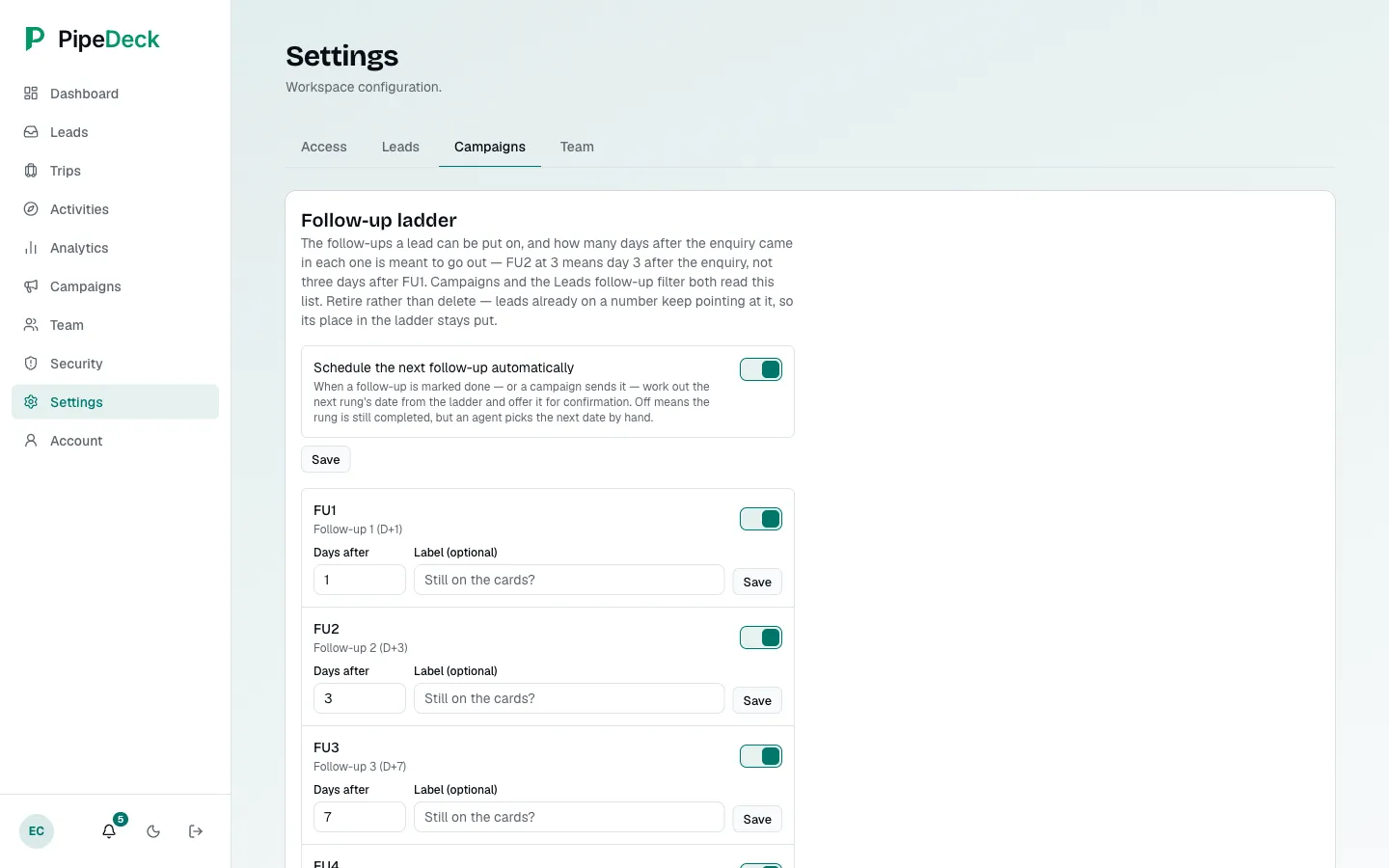
Admins choose which roles get access to activities and pricing and to leads, and set up the automatic follow-up schedule.
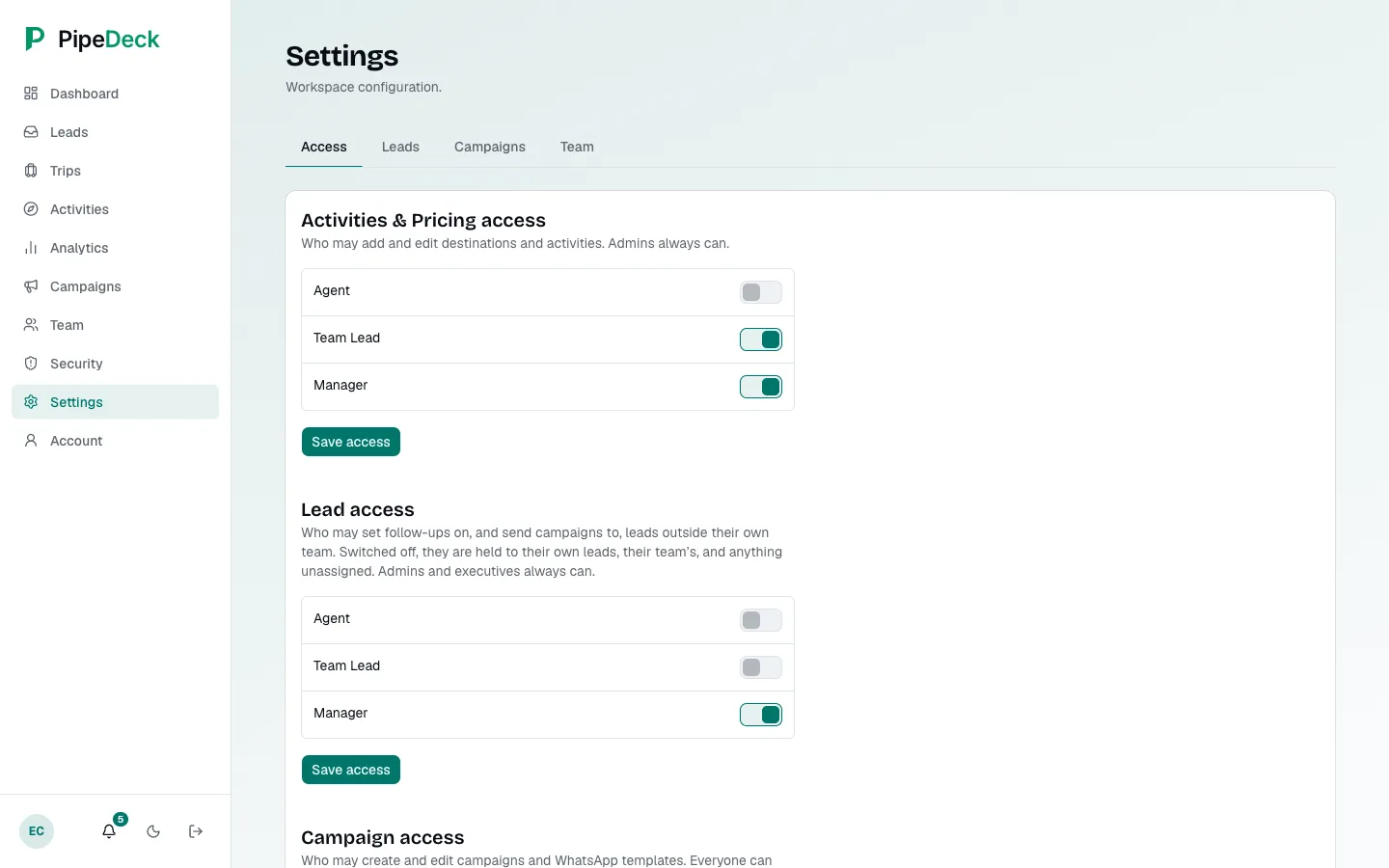
Access tab with per-role switches for Activities & Pricing access and Lead access, each with a Save button.
Access
Campaigns settings tab with the follow-up ladder: automatic scheduling of the next follow-up switched on, and the first follow-up steps with their day offsets (1, 3, 7).
Follow-up schedule

Everyday details

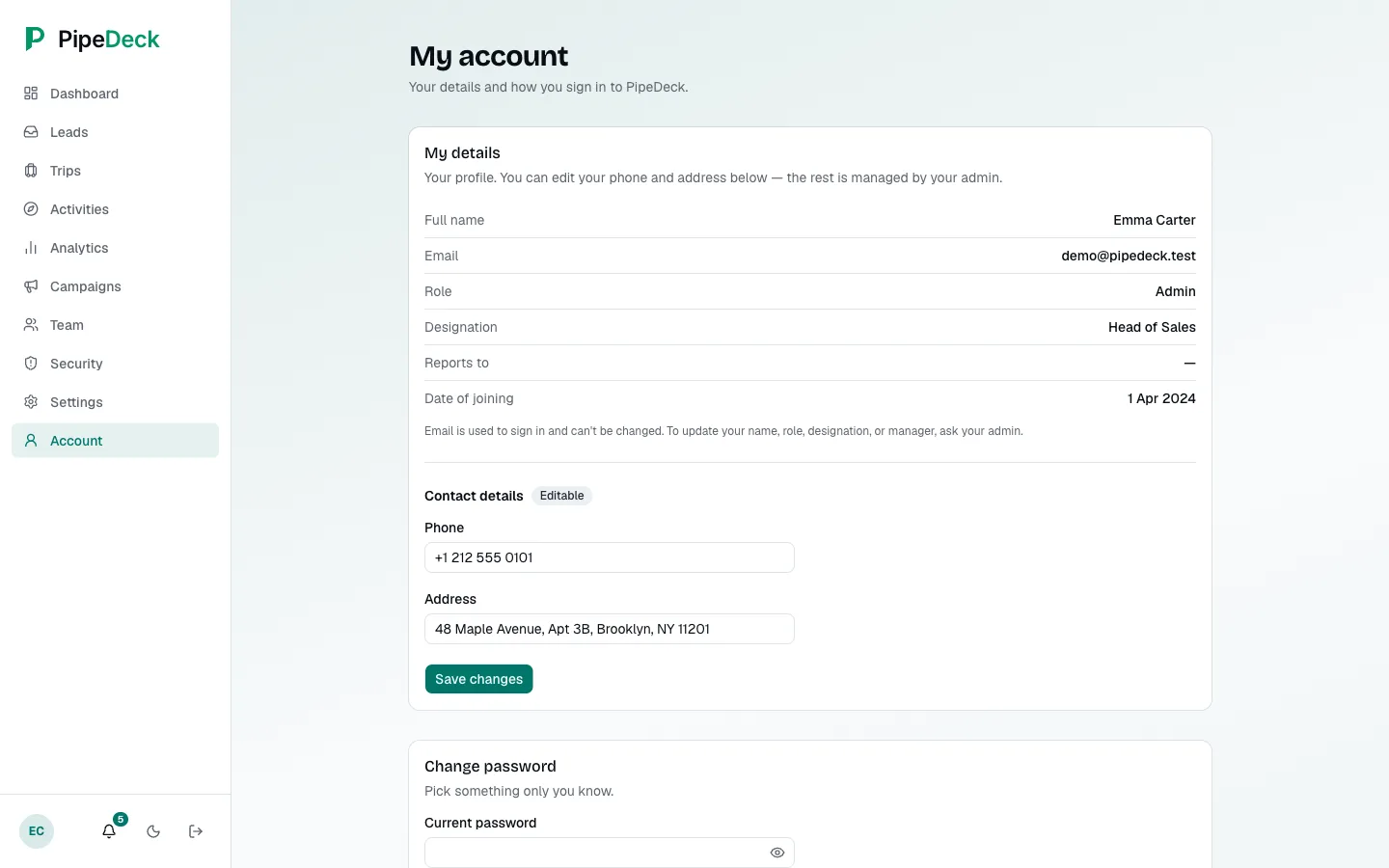
The small things the team uses every day: notifications, a personal account page, dark mode and a phone layout.
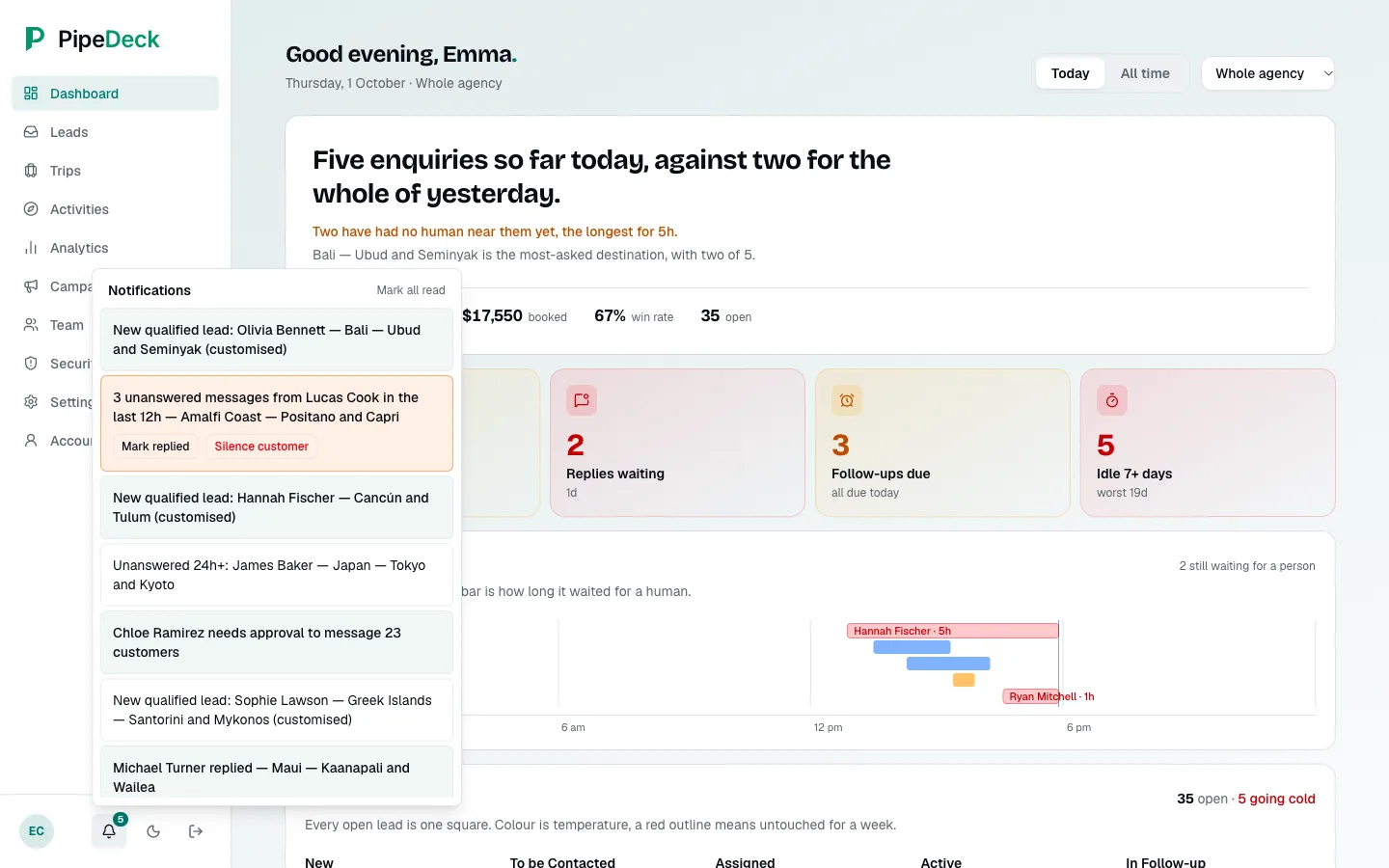
Notification panel opened from the bell (5 unread), with entries for new qualified leads, a reply, an unanswered-message alert with Mark replied and Silence customer, a 24-hour unanswered alert and an approval request.
Notifications
Account page with the person's details (name, email, role, designation, joined), contact details, and an empty change-password form.
Account
The Replies inbox shown in the dark theme.
Dark mode
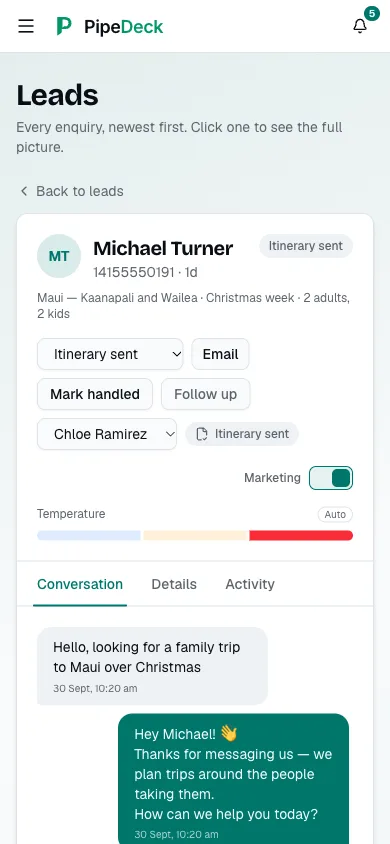
Phone layout with mobile navigation, a lead header and the conversation.
On a phone
Coming soon

Coming soon: AI itinerary drafts

This is planned and is not part of PipeDeck today. When it arrives, PipeDeck will:

  • Draft an itinerary from the agency's past itineraries.
  • Price the draft from the agency's own activities list.
  • Flag low-confidence drafts for an agent to review.

See PipeDeck on your own enquiries.